Google Messages
Screenshots
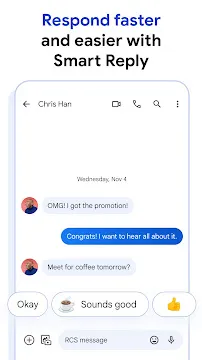
Google Messages is the official communication app from Google built specifically for Android devices. It transforms the way you send texts by replacing old SMS technology with modern features. Most new Android phones come with this app already installed as the primary way to chat. It connects you with friends and family using your phone number, just like traditional texting used to do.
This app uses Rich Communication Services, often called RCS, to provide a better experience. You no longer have to worry about the tiny character limits of the past. Instead, you get a platform that feels like a modern instant messenger. It works over both Wi-Fi and mobile data. This ensures you stay connected even when you do not have a strong cellular signal.
How to Download and Install Google Messages APK
Google Messages helps you stay connected with friends and family. It uses the latest RCS technology to make texting feel like modern chatting. Sometimes, you might want to install the app using an APK file instead of the official store. This guide explains how to do that safely.
Why Use an APK for Google Messages?
Most people get their apps from the official store. However, using an APK file offers specific advantages. You might live in a region where the latest update is not yet available. Sometimes, a new version contains features you want to try immediately. By downloading the APK, you bypass the waiting period. You get the newest tools as soon as they exist.
Preparing Your Android Phone
Android devices have security settings that block unknown files. You must change these settings before you start. This process tells your phone that you trust the file you are about to install.
- Open your Settings app.
- Go to the Security or Privacy section.
- Look for an option labeled Install Unknown Apps.
- Select your web browser from the list.
- Toggle the switch to Allow from this source.
Once you finish these steps, your phone is ready. You can now download files from outside the official store.
How to Download the Google Messages APK
You need to find a clean version of the file. Look for websites that verify the digital signatures of the apps they host. This ensures the file is original and has not been changed.
- Open your mobile browser.
- Visit Filetomob.com.
- Search for “Google Messages APK Download”.
- Choose a version that matches your device architecture.
- Click the download Google Messages APK button.
- Wait for the file to finish saving to your phone.
Installing the App
After the download finishes, you must run the file. This part is very fast.
- Open your File Manager app.
- Go to your Downloads folder.
- Tap on the Google Messages APK file.
- A prompt will appear asking if you want to install the app.
- Tap Install.
Your phone will now process the file. This usually takes only a few seconds. When it finishes, you will see a “Done” or “Open” button.
Get Started with Google Messages on Your Android Phone
Google Messages is the modern way to text. It replaces old, clunky SMS apps with a fast and reliable experience. This guide helps you set up the app on any Android device quickly. Follow these steps to enjoy better chats and smarter features.
Step 1: Set Google Messages as Your Default App
Your phone needs to know which app should handle your texts. When you first open Google Messages, a prompt usually appears at the top of the screen.
- Tap the button that says Set default SMS app.
- A system menu will pop up on your screen.
- Select Messages from the list of available apps.
- Confirm your choice.
By doing this, all your existing text messages will move into the new app. You will not lose your old conversations.
Step 2: Enable RCS Chats
RCS stands for Rich Communication Services. This feature makes texting feel like a modern chat app. It allows you to see typing indicators and high-quality photos. It also uses Wi-Fi or data instead of just cellular signals.
- Tap your Profile Picture or icon in the top right corner.
- Select Messages settings.
- Tap on RCS chats.
- Toggle the switch to On.
RCS works best when the person you are messaging also has it enabled. It turns your simple texts into a much better experience.
Step 3: Verify Your Phone Number
Google needs to verify your number to make RCS work correctly. Usually, this happens automatically in the background. If the app asks for your number, type it in carefully.
You might see a status message that says “Setting up” or “Verifying.” This process usually takes a few seconds. Once it says “Connected,” you are ready to send advanced messages. If it stays stuck, ensure your SIM card is active and you have a steady internet connection.
Step 4: Link Your Devices
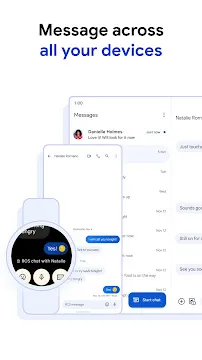
You do not have to limit your texting to just your phone. You can send messages from your computer or tablet. This is very helpful when you are working at a desk.
- Open the Google Messages app on your phone.
- Tap your Profile Icon and select Device pairing.
- On your computer, go to the official Google Messages web page in a browser.
- A QR code will appear on your computer screen.
- Tap QR code scanner on your phone and point it at the computer screen.
Your conversations will now sync across both devices. You can type long messages using your computer keyboard while your phone stays in your pocket.
Why You Should Use Google Messages
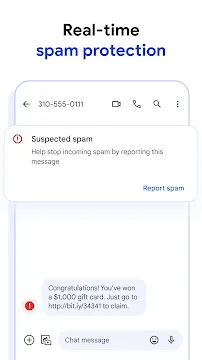
This app keeps your chats organized. It automatically sorts messages into categories like “Personal” and “Transactions.” It also includes strong spam protection. This feature identifies suspicious texts and moves them to a separate folder. You stay safer from scammers while keeping your main inbox clean.
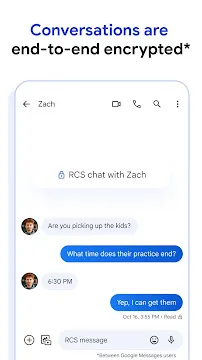
The app also supports End-to-End Encryption. This means your private chats stay private. Only you and the person you are messaging can read the content. This security works automatically for RCS chats between two people using Google Messages.
Key Features of Google Messages
Google Messages is the default texting app for most Android users. It is much more than a simple tool for SMS. This app uses modern technology to make your conversations more interactive and secure.
Upgrade Your Conversations with RCS
The biggest change in Google Messages is Rich Communication Services (RCS). This feature turns your basic texts into a modern chat experience similar to WhatsApp or iMessage.
- Read Receipts: You can see exactly when your friends open and read your messages.
- Typing Indicators: You will see dots appear when the other person is typing. This helps you avoid sending double texts.
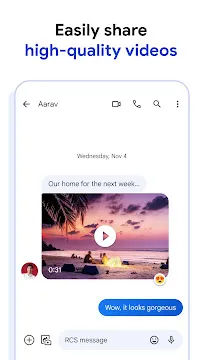
- High-Resolution Media: You can send clear photos and high-quality videos without the blurriness of old SMS formats.
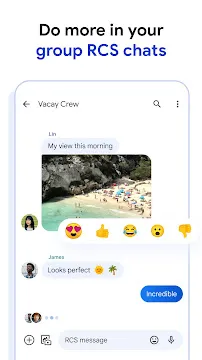
- Better Group Chats: You can name groups and add or remove members easily.
RCS works over Wi-Fi or data. This means you can keep texting even if you have no cellular signal.
Keep Your Secrets with End-to-End Encryption
Privacy is a top priority for Google Messages. The app uses End-to-End Encryption (E2EE) for both one-on-one and group chats.
When you use RCS, your messages are locked before they leave your phone. Only you and the receiver have the “key” to unlock them. Not even Google can read your private words. This security happens automatically. You do not need to change any settings to stay safe.
Better Media with Google Photos
Sending large videos used to be a problem on Android. Google Messages fixes this with Google Photos integration.
If a file is too large to send, you can share a high-quality link directly from Google Photos. Your friends can watch the video in full resolution. This keeps your memories sharp and clear for everyone.
Text from Your Computer or Tablet
You do not need to pick up your phone every time you get a text. You can use Web and Device Pairing to text from your laptop or tablet.
- Open the Messages website on your computer.
- Open the app on your phone.
- Scan the QR code to pair the devices.
Once connected, your messages sync instantly. You can type on a full keyboard and see all your threads on a big screen.
Smart Features Powered by AI
Google uses smart technology to make texting faster. These features save you time and keep your inbox clean.
Block the Noise with Spam Protection
The app identifies suspicious messages. It warns you about potential scams and moves spam texts to a separate folder. This keeps your main inbox focused on your real friends.
Quick Actions and Replies
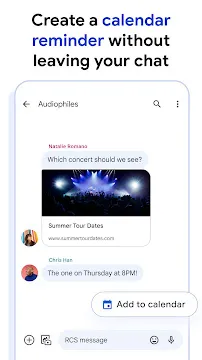
The app suggests short replies based on the context of your chat. If someone asks for a meeting, a button might appear saying “Add to Calendar.” You can manage your life without leaving the conversation.
Magic Compose (Beta)
Magic Compose uses AI to help you write. It can suggest ways to rewrite your message to sound more professional, excited, or even poetic. It is a great way to overcome writer’s block.
Personalize Your Experience
You can change how the app looks to match your style.
- Custom Bubbles: You can change the colors of the chat bubbles for different contacts.
- Dark Mode: Switch to a dark theme to save battery and reduce eye strain at night.
- Custom Notifications: Set unique sounds for your favorite people so you know who is texting without looking.
Google Messages combines security, speed, and fun into one app. It makes staying connected easier than ever before.
Google Messages: Top Tips and Tricks
Google Messages is more than just a simple texting app. It is a robust tool that helps you manage your daily communication with ease. If you want to declutter your inbox and stay on top of your tasks, these tips will help you master the app.
Keep Your Best Friends at the Top
It is easy to lose track of important people when you receive many texts. You can fix this by pinning your most important conversations. When you pin a chat, it stays at the very top of your list. You will never have to scroll through dozens of messages to find your spouse, parent, or best friend again.
- Long-press the conversation you want to keep handy.
- Tap the thumbtack icon at the top of the screen.
- You can pin up to five conversations to ensure they are always visible.
Send Messages at the Perfect Time
Sometimes you want to send a text, but the timing is wrong. Perhaps it is too late at night, or you want to send a birthday wish exactly at midnight. Google Messages allows you to schedule your texts in advance. This feature ensures your message arrives exactly when you want it to.
- Type your message in the text box.
- Press and hold the send button (the arrow icon).
- Choose a preset time or pick a specific date and hour.
- Tap save and then send. The app will hold the message until the chosen time.
Save Vital Info with Starred Messages
We often receive addresses, gate codes, or flight numbers in our texts. Finding that one piece of data later can be a nightmare. You should use the star feature to bookmark these specific messages. This creates a digital folder of your most important snippets of information.
- Press and hold an individual message bubble.
- Tap the star icon that appears in the top menu.
- To find your starred items later, tap the search bar or your profile icon and select “Starred.”
Never Forget to Reply Again
Life gets busy. You might read a message but lack the time to respond immediately. Instead of forgetting about it, you can snooze your reminders. This removes the notification for a while and brings it back to the top of your tray later. It acts like an alarm clock for your conversations.
- Swipe the conversation in your inbox (depending on your settings) or long-press it.
- Select the clock icon to snooze.
- Choose a time, such as “One hour” or “Tomorrow morning.”
- The message will reappear as a new notification at that exact time.
Organize Your Inbox with Categories
A messy inbox makes it hard to focus. Some regions have access to message categories. This feature automatically sorts your texts into folders like Personal, Transactions, and OTPs.
- Check the top of your message list for category tabs.
- Personal holds chats with your contacts.
- Transactions keeps track of bank alerts and receipts.
- OTPs (One-Time Passwords) stores those temporary login codes and often deletes them automatically after 24 hours.
Express Yourself with Emoji Reactions
You do not always need to type a full sentence to acknowledge a message. Emoji reactions allow you to respond quickly and keep the conversation flowing. It is a great way to show you agree, laughed, or saw the message without sending another notification.
- Long-press any message bubble sent by someone else.
- A row of popular emojis will appear.
- Select the emoji that fits your mood.
- The reaction will appear as a small icon attached to the bubble.
By using these features, you turn a basic app into a productive assistant. These tools help you stay organized, save time, and communicate more effectively every day.
Google Messages: Power User Features
Google Messages now offers advanced tools that change how you text. You can fix mistakes, use artificial intelligence to write, and manage your time better. These features help you communicate more clearly on your Android device.
Edit and Delete Sent Messages
Mistakes happen when you type quickly. You might notice a spelling error or send a text to the wrong person. Google Messages now allows you to fix these issues with ease.
- Edit a Message: Long-press a message you just sent. Tap the edit icon to change the text. Your contact will see that the message was edited, but the original error disappears.
- Delete a Message: If you regret sending a text, you can retract it. This feature removes the message from both your phone and the recipient’s phone.
These updates ensure your conversations stay professional and accurate. You no longer have to send a second text to clarify a mistake.
Magic Compose with Gemini AI
Sometimes you know what you want to say, but you cannot find the right words. Magic Compose uses Gemini AI to help you find the perfect tone. This tool can rewrite your drafts in several unique styles.
- Professional: Turns a casual note into a polished business message.
- Chill: Makes your tone relaxed and friendly.
- Shakespearean: Adds a dramatic and poetic flair to your texts for fun.
To use this, write a draft and tap the Magic Compose icon. The AI suggests different versions of your sentence. You can choose the one that fits your mood and send it instantly.
Voice Message Transcriptions
Audio clips are convenient for the sender, but you cannot always listen to them. You might be in a loud room or a quiet meeting. Voice message transcriptions solve this problem by turning audio into text.
When you receive a voice clip, Google Messages automatically displays a text version below the play button. You can read the message immediately without making a sound. This feature saves time and keeps your private conversations discreet.
Scheduled Send for Better Timing
Timing is everything in communication. You may want to reply to a friend at midnight but do not want to wake them up. Scheduled Send allows you to write a text now and deliver it later.
- Type your message in the chat box.
- Hold down the send button to see scheduling options.
- Pick a preset time, like 8:00 AM, or choose a custom date.
Your phone holds the message and sends it at the exact time you selected. This tool helps you stay organized without disturbing others.
These power user features make Google Messages a modern tool for everyday life. By using these updates, you can manage your digital life with confidence.
Secure Conversations with Google Messages for Android
Staying safe online starts with the apps you use every day. Google Messages focuses on your security and privacy first. It protects your personal data while you chat with friends or talk to businesses. Below, you will learn how this app keeps your private life private.
End-to-End Encryption (E2EE)
Your private chats should stay between you and the person you message. Google Messages uses End-to-End Encryption (E2EE) to ensure this happens. This technology turns your text into a secret code that only the recipient’s device can unlock.
Encryption offers several key benefits:
- Privacy from prying eyes: Google cannot read your messages.
- Carrier security: Your mobile service provider cannot see the content of your chats.
- Complete protection: This security covers one-on-one chats and group conversations.
You can tell a chat is secure when you see a small lock icon. This lock appears next to the send button and on message timestamps. If everyone in a group uses RCS, the entire conversation remains fully encrypted.
AI-Powered Scam Detection
Scammers often try to trick people with fake texts. They might claim you won a prize or that there is a problem with your bank account. Google Messages uses advanced AI to stop these threats before they reach you.
The app works quietly in the background to keep you safe. It looks for red flags in incoming messages from unknown numbers. If a text seems suspicious, the app can take action immediately.
Here is how the AI protects you:
- Spam Filtering: It automatically moves “lottery win” or fake “delivery” texts to a spam folder.
- Warning Labels: If you open a suspicious message, the app displays a clear warning.
- Link Safety: The AI checks links for signs of phishing. It warns you before you click a site that might steal your info.
This system learns from new scam patterns every day. It gets smarter over time to stay ahead of hackers.
Verified Business Profiles
Many people use text messages to talk to companies. However, it is hard to know if a message really comes from a specific brand. Google Messages uses Verified Business Profiles to solve this problem.
When a company like a bank or a major retailer contacts you, look for the verification badge. This badge proves that Google has confirmed the sender’s identity. It helps you trust the information you receive.
Verified profiles provide several safety features:
- Authentic Logos: You see the official company logo instead of a random phone number.
- Verification Checkmarks: A small shield or checkmark appears by the business name.
- Reduced Fraud: Scammers cannot easily fake these verified badges.
Always check for these signs before sharing personal details. These tools make Google Messages a reliable place for all your communication needs.
Gemini Inside Google Messages
Google Messages is changing the way we text. It is no longer just an app for sending simple messages. Now, it features Gemini, a powerful AI designed to make your life easier. This deep integration brings personal intelligence directly into your daily conversations.
Private Chat Intelligence
Gemini does more than just talk to you. It understands the context of your life by looking at your messages. This feature works locally and privately on your device. You can ask Gemini specific questions about your past conversations without scrolling for hours.
Imagine you are planning a night out. You can ask:
- “What time did Sarah say the dinner reservation was?”
- “Which park did my brother suggest for the picnic?”
- “What was the address for the party next Saturday?”
The AI scans your history and gives you the answer instantly. Because this happens on your phone, your data stays secure. You get the benefits of an assistant without sacrificing your privacy.
Creative Tools: Photomoji and Image Remix
Texting should be fun and expressive. Google Messages now includes tools that turn your photos into digital art.
Photomoji lets you create custom reactions. You can take any photo from your gallery and turn it into a sticker. If your dog makes a funny face, you can turn that face into a reaction for your friends. It adds a personal touch that standard emojis cannot match.
Image Remix takes creativity even further. This feature allows you to generate and edit AI images right inside your text box. You can start with a basic photo and use the “Remix” tool to change it completely.
- Add a silly hat to a picture of your cat.
- Change the background of a selfie to a tropical beach.
- Create a brand-new image based on a prompt.
These tools allow you to communicate with visuals in a way that was never possible before.
Smart Summaries: The “Catch Me Up” Feature
Group chats are often loud and chaotic. If you leave your phone for an hour, you might return to 100 missed messages. It is exhausting to read through every single text to find the important information.
Google Messages solves this with Smart Summaries. When you open a busy chat, you can use the “Catch Me Up” feature. Gemini analyzes the unread messages and provides a brief summary.
- It highlights the main topics of discussion.
- It notes any plans or decisions made by the group.
- It identifies if someone asked you a specific question.
This saves you time and keeps you from feeling overwhelmed. You stay informed without the stress of constant scrolling.
Frequently Asked Questions About Google Messages For Android
What is Google Messages?
Google Messages is the official app for texting on Android. It handles standard SMS and MMS messages. It also uses RCS (Rich Communication Services) to provide a modern chat experience. This app allows you to send texts, photos, and voice notes over Wi-Fi or data.
How do I enable RCS features?
RCS makes your texting feel like a modern chat app. You get read receipts, typing indicators, and high-quality photo sharing. To turn this on, follow these steps:
- Open the Messages app.
- Tap your profile icon in the top right corner.
- Select Messages settings.
- Tap RCS chats.
- Toggle the Turn on RCS chats switch to “On.”
Once active, you will see “RCS message” in the text entry bar when chatting with others who also use the feature.
Can I use Google Messages on my computer?
Yes, you can sync your phone with your computer. This allows you to read and reply to texts using a keyboard.
- Visit the official Messages for web site on your computer browser.
- Open the app on your phone.
- Tap the three-line menu or profile icon.
- Select Device pairing.
- Tap QR code scanner and point your phone at your computer screen.
Your conversations will appear instantly on your desktop. This connection stays active until you sign out.
How does spam protection work?
Google Messages identifies suspected spam to keep your inbox clean. The app detects patterns from known spammers. If a message looks like a scam, the app moves it to a “Spam & blocked” folder. You can also manually block numbers. Simply long-press a conversation and select the block option to stop receiving alerts from that sender.
Is my data private and secure?
Privacy is a core part of the app. When you use RCS with another person who has it enabled, the app uses end-to-end encryption. This means nobody, including Google or your mobile carrier, can read your private words. You will see a small lock icon next to the send button or timestamps in encrypted chats.
How can I schedule a message?
Scheduling helps you send texts at the right time. You might want to send a birthday wish at midnight or a work reminder in the morning.
- Type your message in a chat.
- Hold down the send button instead of tapping it.
- Choose a suggested time or pick your own date and hour.
- Tap Save.
The message will wait in the chat window until the chosen time arrives.
Can I organize my messages?
The app helps you stay organized by categorizing your texts. It automatically separates messages into “Personal” and “Business” tabs. This prevents delivery alerts or one-time passwords from cluttering your personal chats. You can also “Star” important messages. If someone sends you an address or a code, long-press the text and tap the star icon to find it quickly later.
How do I send voice notes?
If you prefer talking over typing, use the voice message feature. Tap and hold the microphone icon next to the text bar. Record your thoughts and release the button to send. You can also slide the icon up to lock it in recording mode if you have a long story to tell.
What are Magic Compose and AI features?
Newer versions of the app include AI tools to help you write. Magic Compose suggests responses based on the context of your chat. It can change the tone of your message to make it sound more professional or more excited. This saves time when you are on the move and need a quick reply.
Can I react to messages?
You do not always need to type a response. You can react to a text with an emoji. Long-press any message you receive to see a row of emojis. Tap one to attach it to the bubble. This is a fast way to show agreement, laughter, or surprise.